
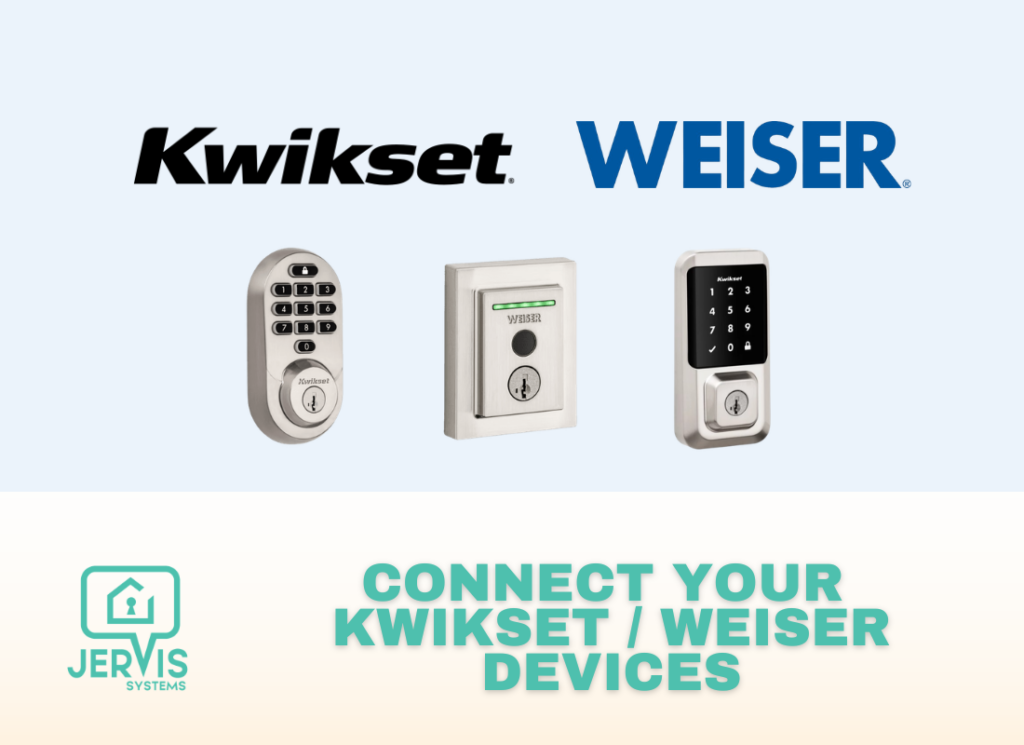
This guide will walk you through everything you need to know about the integration with Kwikset and Weiser, and connecting your devices to Jervis.
Note: Only Wi-Fi Halo locks are supported.
See all supported lock models here for Kwikset.
See all supported devices here for Weiser.
How to Set Up Code Management Through Jervis
The official Kwikset / Weiser API is relatively new and currently manages codes added through their app and from Jervis separately. This causes “TOKEN_NOT_FOUND” errors that PMs see on the dashboard when the system attempts to add codes for reservations.
To avoid these types of errors, Kwikset / Weiser recommends that all codes on the Halo locks be managed through Jervis.
Please complete the following steps:
1) Factory reset the lock and leave only the one master / admin code that the app requires when setting up the lock
After you have completed the factory reset, all codes MUST be managed from Jervis moving forward. This includes updating codes for early check-in, late check-out, adding staff user codes, temporary codes, etc. All codes must be managed from Jervis.
Adding or managing codes again from the Kwikset / Weiser app WILL cause the Kwikset platform to lose track of the codes being added and will cause API errors again.
NOTE: Codes created by Jervis will NOT be visible in the Kwikset / Weiser app until you are near the lock itself (within Bluetooth range). This is the way the Kwikset / Weiser lock and API currently work. This is completely out of our control.
Unless Jervis is showing an error, the codes will be added successfully to Jervis and your property management system, and your guest will have access.
We recognize this can be tricky as a property manager if you’re managing remotely and are unable to verify the codes. This is why we highly recommend factory resetting the lock for your rental property to keep the codes from getting out of sync and have better peace of mind.
The Kwikset / Weiser team is working on updates to their API and how their mobile app operates. We do not currently have a time frame on when this will be released.
2) After the lock has been factory reset, you MUST reprocess the affected reservations. Details on reconnecting your device and reprocessing reservations can be found in our guide here.
Future guest codes will be created automatically when reservations flow in from your PMS.
3) You can add codes for your team or service techs under the Users section in Jervis Systems.

How to Connect your Kwikset / Weiser Halo Devices to Jervis
- From your Jervis Systems account, select the Devices tab and select the option under the Import Devices drop-down list to connect to Kwikset/Weiser.

- The next page will prompt you to sign in to your Kwikset / Weiser account. IMPORTANT: The API also requires that the owner account be used to log in when importing devices. The owner account is the original account used to set up the account and add the devices. A delegated admin account cannot be used. When submitting credentials, please note that this form is case sensitive (the Kwikset / Weiser app is not).

- You can find your email via the Kwikset (or Weiser) app under Account Settings.


- If you have Halo Wi-Fi devices but receive an error that “No devices are found” when attempting to import devices, the original owner account is not likely being used. You will need to try again using the owner account. Shared admin accounts CANNOT be used. The Kwikset / Weiser API does not support this.
- Once your account is connected, you can select the Refresh button on your devices page to show your imported devices. Then, select the drop-down list under the Assigned Listings column to assign the device(s) to a listing. Be sure devices are assigned to the correct listing. After assigning your device, the status will show as enabled.

- Going forward, if you are looking to import newly added Kwikset / Weiser devices, do not re-import the vendor. Use the Refresh Devices option at the top of the Devices page.
- From your reservations tab, select the Refresh reservations button. Once your reservations are imported or refreshed, you should see your generated PIN code under the SET PIN field.

- Now, your Kwikset / Weiser Halo Wi-Fi devices are mapped to your their respective listings and access is set up for your guests. Guests can either type the PIN code in or use our web app (AccessMyProperty.com) and mobile app to click to unlock. You can see more details on sharing access in our guide here.

Need additional help and support? Check out the user guides on our FAQ page. You can also get help by submitting a Support Request via your Jervis Systems dashboard.