
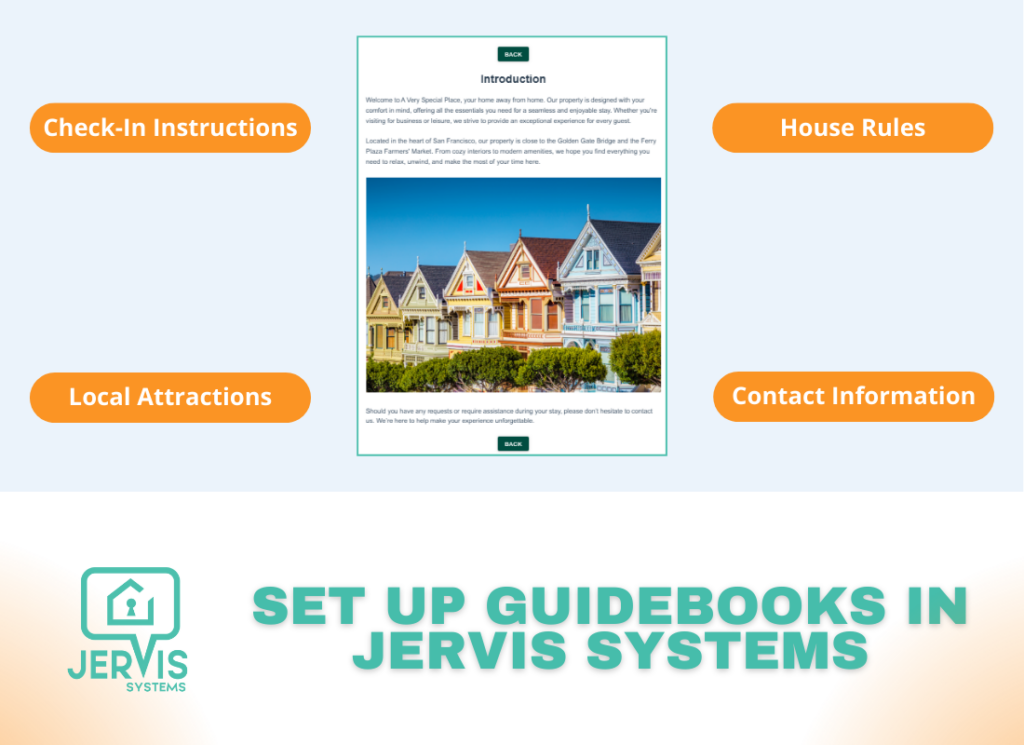
Jervis Systems allows you to create guidebooks to share important details with guest for all aspects of their stay, across all of your listings.
Here’s how to set them up:
Note: To use the Guidebooks feature, you can enable it for your account by submitting a Support Request in Jervis Systems (if it’s not already available in your main taskbar).
- Navigate to Add-Ons > Guidebooks tab in your account. You will see all of the listings you have enabled for the Guest Guidebooks feature. Select the Operations menu function to edit the guidebook for the listing.

- From the edit view, you can customize the default sections of the guidebook. You can use the settings to format text, create tables, add photos and videos, and embed links. You can also color code the sections based on importance, urgency, or topic using the Color Picker tool.

- Additional sections can be added by scrolling to the bottom of the page. Add the title of the section, then select the Add Section button.

- For all changes made, be sure to select the Save button at the bottom of the page.
- You can preview your guidebook by navigating to the SET App page > Try Our Web App. Then select the web app with your preferred language. You will use the phone number or email associated with your Jervis Systems account to access.

- You can also view it and share access with a guest using the custom link for the listing, which can be found under SET App > Web App Links.

- Select the property link (or platform property link if available in your account) and log in to the SET app with the phone number or email associated with your Jervis account.
Note: The difference between the property link and the platform property link is the IDs. The property link uses the Jervis property ID. The platform property link uses the PMS property ID.

- From the SET App view, be sure the listing you want to preview is selected from the drop-down. Then select the main menu option.

- Select Guidebooks.

- Here you will see each section for the guidebook. A color will be shown for the section if it’s chosen from the Color Picker. Click anywhere on the section tab to open it.

- From here, you can preview each section and see how images, videos, and other information is displayed to the guest. This allows you to make edits as needed.

- Once you have finished editing all sections for the listing, your guidebook is ready to be shared with guests. Guests will be able to view the guidebook at any time from the main menu of the SET web app. You can view additional details in our guide here about the web app and how to share access with guests.
Alternatively, you can also provide your guests with a direct link to your guidebook without navigating the full SET app. To do this, simply provide guests with the domain you selected, followed by “/guidebooks”. For example, the direct link to the guidebook for the domain AccessMyProperty.com would be https://accessmyproperty.app/en/guidebooks.
Please note that your guests will still have to sign in to the web app using their reservation information.
Need additional help and support? Check out the additional user guides on our FAQ page. You can also get help by submitting a Support Request via your Jervis Systems dashboard.