
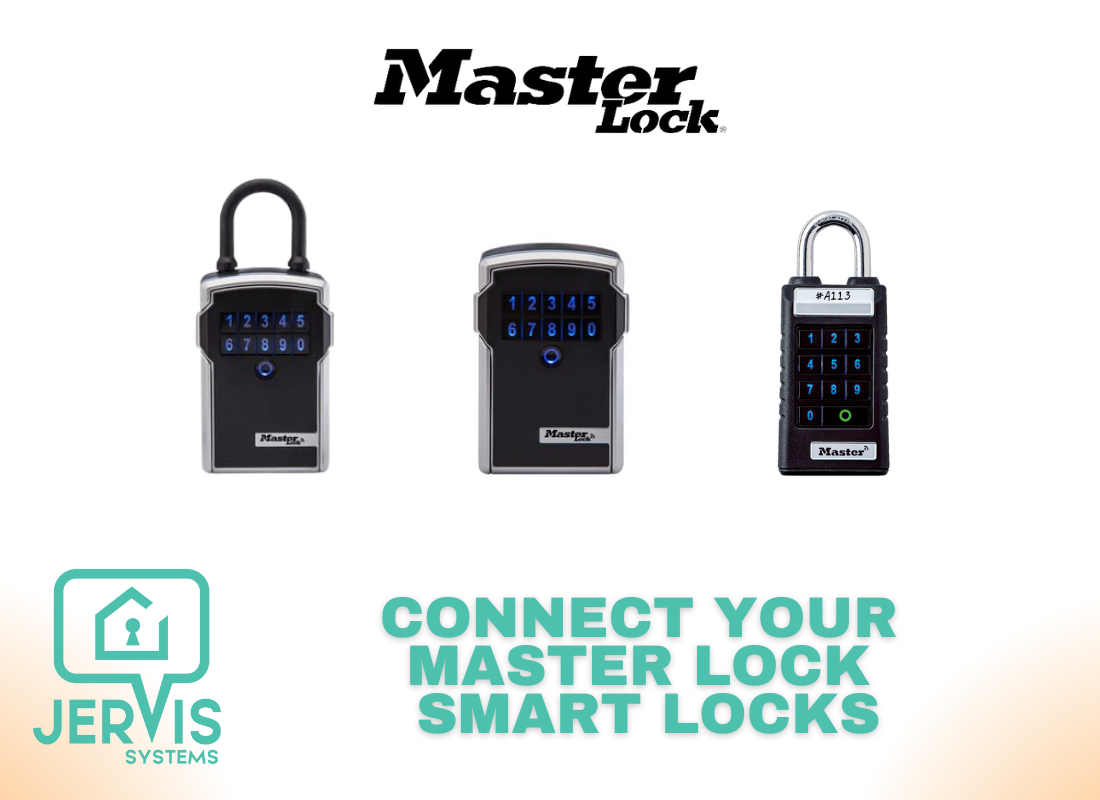
How to Add Master Lock Smart Locks to Jervis Systems®
Integrating your Master Lock smart locks allows you to set up keyless access for guests, cleaning companies, and maintenance personnel.
With Master Lock there are two scenarios when it comes to setup.
- If it is a new lock that has NOT been added to the Master Lock Vault Home app or the Master Lock Vault Enterprise app, you can go to Devices < Import Devices < Master Lock on the Jervis Systems Devices page and enter in their Device ID and Activation Code.

- If the lock has been added to the Master Lock Vault Home or Master Lock Vault Enterprise or you are running into an error, you will need to delete the lock from your Master Lock Vault Home or Master Lock Vault Enterprise app.
Note: Step #2 is VERY important. Your Master Lock devices cannot be imported into Jervis until this step has been completed.
- Once the lock has been removed from the Master Lock Vault app, please import the device again in Jervis under Devices < Import Devices < Master Lock on the Jervis Systems Devices page and enter in their Device ID and Activation Code.
- Once your Master Lock devices are imported, select the drop-down list under the Assigned Listings column to assign the device(s) to a listing. Be sure devices are assigned to the correct listing. After assigning your device, the status will show as enabled.

- Going forward, if you are looking to import newly added Master Lock devices, do not re-import the vendor. Use the Refresh Devices option at the top of the Devices page.
- Navigate to the Reservations page and select the Refresh Reservations button. From there, you should see your generated PIN code under the SET PIN field.

That’s it! Now, your Master Lock smart locks are mapped to your respective listings and keyless access is set up for your guests.
When reservations come in, Jervis will automatically assign access to your guests through our Jervis Systems mobile app (available in the iOS and Android App Stores) and our web app (AccessMyProperty.com). Our web app is recommended as most guests don’t prefer to download an app for a shorter-term stay.
This way, the guest does not have to use the Master Lock app or Bluetooth to access the property.
- Check out our app guide below to learn how your guests can see the currently active code.
How to Provide Guests Access to Your Devices via the Jervis Systems® Mobile and Web App
NOTE: With the Master Lock integration, please keep in mind that temporary codes are NOT created for your guests or sent to them via your property management system. You MUST send your guests the link to our mobile app or web app.
Our integration with their APIs provides a unique code that rotates automatically every 4 hours by default. The currently active code will be seen in our mobile app and web app for you and your guests.
- The guest’s phone number or email address MUST match what is provided by your property management system in the reservation. You can edit a reservation by following the instructions here.
Need additional help and support? Check out the user guides on our FAQ page. You can also get help by submitting a Support Request via your Jervis Systems dashboard.
RECENT POSTS

Jervis Smart Device Integration Status
March 27, 2026


Jervis Systems®: The Future of Property Automation
June 26, 2020



Top 4 Tips On Renting Your Private Property Long-Term
July 21, 2020
Categories
- Airbnb Mastery (1)
- Integrations (10)
- Jervis Systems Guides (142)
- Property Projects (1)
- Real Estate Tips (5)
- Rental Property Tips (10)
- Technology Solutions (10)
