
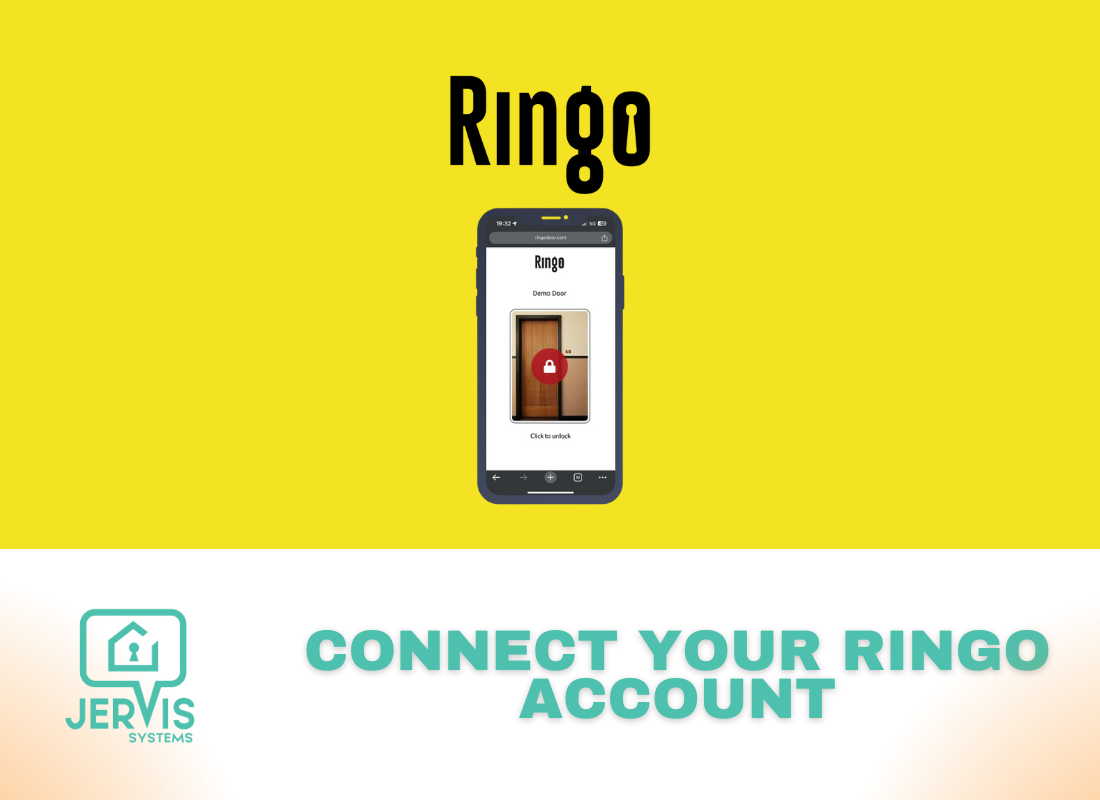
How to Connect & Set Up Your Ringo Account
This guide will walk you through how to connect your Ringo account to Jervis Systems. We’ll also detail how to lock and unlock doors using the Jervis web app or a Ringo digital key.
- To connect your Ringo account, navigate to the Devices page in Jervis Systems. Select the Import Devices button, and select Ringo from the drop-down list.

- The next screen will prompt you to input your client ID and client secret API key. To get these details, you will need to reach out to the Ringo team by emailing info@ringolock.com. Be sure to include the following information:
- Firstname
- Lastname
- Phone
- Language
- Name of door(s)
- City
- Device ID(s)
- Relay ID(s)
- Once you’ve shared these details, Ringo will be able to set up the doors for your account and provide the necessary information to connect. Once you’ve pasted in your details, select the Submit button.

- Once your Ringo account is connected, you can select the Refresh button on your devices page to show your imported device(s). Then, select the drop-down list under the Assigned Properties column to assign the device(s) to a property. Be sure devices are assigned to the correct property. After assigning a device, the status will show as enabled.

- Going forward, if you are looking to import newly added Ringo devices, do not re-import the vendor. Use the Refresh Devices option at the top of the Devices page.
- From your reservations tab, select the Refresh reservations button. Once your reservations are imported or refreshed, you should see the generated PIN code under the SET® PIN field.

- Jervis Systems stores the PIN code to property management systems. If you have a property management system connected, you can create an email template to automatically send access instructions to guests. We detail how to do this for different property management systems in our guides here.
How to Lock & Unlock Doors
To gain entry, guests have a couple of options with the Jervis Systems-Ringo integration.
Guests can use the Jervis Systems web app and log in using their phone number or email associated with their reservation.
From there, they can command the Ringo device. They wil be able to see the SET® PIN code generated by Jervis and can click to unlock/lock the door.

Additional details on using the Jervis Systems web app (and mobile app) are included in our guide here.
Guests can also use the Ringo digital key. You can share a direct link to the digital key with guests from your Ringo account, or choose to send an email to the guest.

To access the digital key, guests will need to use their Jervis Systems PIN code.

Once guests access the digital key, they can select the lock/unlock icon.


At any time, you can view PIN codes generated for each reservation via the PINS tab in your Ringo account.

Need additional help and support? Check out the additional user guides on our FAQ page. You can also get help by submitting a Support Request via your Jervis Systems dashboard.
RECENT POSTS

Jervis Smart Device Integration Status
March 27, 2026


Jervis Systems®: The Future of Property Automation
June 26, 2020



Top 4 Tips On Renting Your Private Property Long-Term
July 21, 2020
Categories
- Airbnb Mastery (1)
- Integrations (10)
- Jervis Systems Guides (142)
- Property Projects (1)
- Real Estate Tips (5)
- Rental Property Tips (10)
- Technology Solutions (10)
