
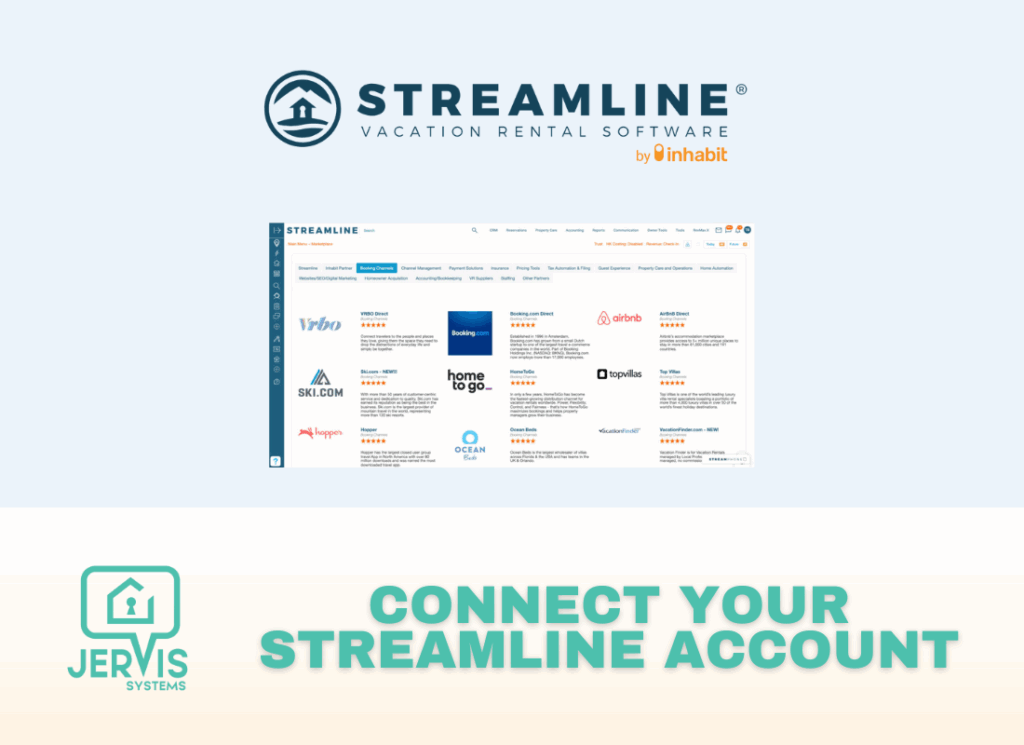
With the Jervis Systems-Streamline integration, you can import your listings and reservation details and automate listing access via SET PIN codes and smart home device settings for guests, cleaning companies, and maintenance personnel.
Below, we outline the complete step-by-step process to connect Streamline to Jervis Systems, set up PIN code access, and automate messaging to guests.
- First, you will need to get your Request your Token Key and Token Secret from Streamline. Go to the Streamline admin dashboard and select the option for Self-Service Onboarding.

- Navigate to page 2 to find Jervis Systems and click the Get Tokens button.

- From the modal that pops up, enter your password and click “I agree”. The token key and secret will be sent to you.

- Once you have this information, log in to your Jervis Systems account and select the option to connect to Streamline from the Marketplace page.

- You will be prompted to input your Token Key and Token Secret for Streamline.

- Once you are connected, go to the Listings page within your Jervis Systems account and click Refresh Listings. When the page has been reloaded, you will see all of the listings imported from your Streamline account.

Note: From here, you have the option to edit your listings to add an offset capability that allows Jervis Systems to configure automated keyless access for early check-in and late check-out. If you have the same offset capabilities across all listings, you can use the bulk offset tool to apply these settings across your entire portfolio.

- The next steps will walk you through setting up access between Jervis Systems and Streamline for your imported reservations. Go to the Devices page and connect to your smart locks and devices by selecting the Import Devices button. From there, select your smart lock or device provider and follow the prompts to connect your account.

- Once your devices are imported successfully, you will want to assign your devices to your imported Streamline listings. You can do this by selecting the drop-down list for the device you want to assign and checking the boxes for the listings to which you want it assigned. Once assigned, the status indicator will turn green for all properties with assigned devices on the Listings page.

- You can confirm that automated access is set up by navigating to the Reservations tab in Jervis Systems. You should see the PIN code in the SET PIN field.

- To set up automated messaging, navigate to the messaging template settings in your Streamline account to create an access instructions template using the {reservation_additional.jervis_code} variable to populate the PIN code. We suggest scheduling your access instructions to send 24 hours in advance of check-in.
- If you plan to offer pool heating as an Upsell capability through Streamline, Jervis can pull this data and set up automation for heating before guest arrival. To set this up, go to General Settings and create a Reservation Flag for Pool Heat.

- Then, under Default for Taxes/Fees, make sure the instances for Pool Heat are selected.

Success! Your Jervis Systems and Streamline accounts are connected, and your PIN codes are set up. Guests can either type the PIN code in or use our web app (AccessMyProperty.com) and mobile app to click to unlock. You can see more details on sharing access in our guide here.

Need additional help and support? Check out the user guides on our FAQ page. You can also get help by submitting a Support Request via your Jervis Systems dashboard.