
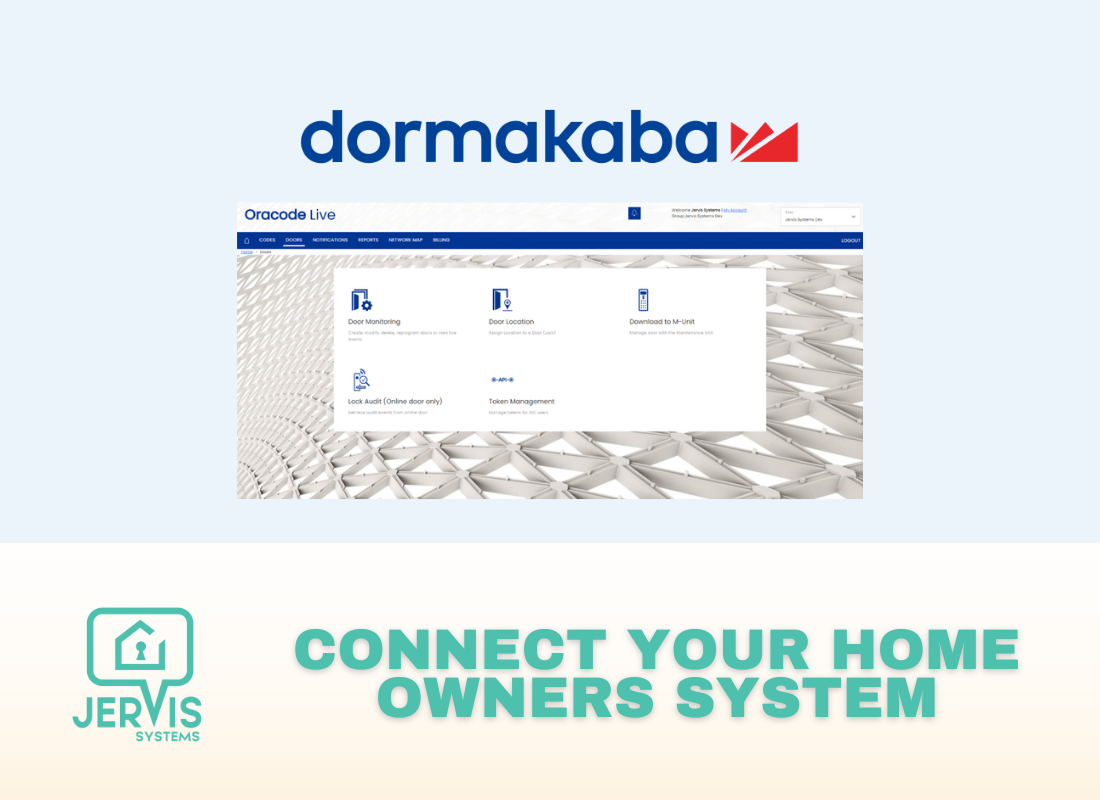
How to Connect Your dormakaba Home Owners System to Jervis Systems®
By connecting your dormakaba Home Owners system to Jervis Systems®, you can import your property listings and reservation details and automate property access via SET PIN codes for guests, cleaning companies, and maintenance personnel.
You can connect your accounts in just a few easy steps:
- To start, copy and paste the URL below into your search bar and navigate to the page. You will be prompted to enter your dormakaba Home Owners system login information.
https://www.kabaecodewireless.com/

- Once you’re logged in, navigate to the Doors tab in the top menu.

- On the Doors screen, click on Token Management.

- On the Token Management screen, you will see your Site ID. Copy this information. In Jervis, navigate to the Devices page, select dormakaba from the drop-down, and paste this into the site ID field provided in Jervis.


- Select the “Create A Token” button to create a token to use with Jervis Systems.

- On the Create Token screen, type in Jervis System in the name field. For the partner dropdown, select Jervis.

- Next, assign the doors to the token that you want to be managed by Jervis. To do so, select the doors in the Door Name drop-down. After selecting your door, press the “Link Door” button. Repeat this process until all of your chosen doors are linked and visible in the list below the drop-down.

- Now, you’ll need to copy your API token. Click on the menu button below the “Create a Token” button. Once the menu opens, select Copy. This will copy the API token to your clipboard.

- Paste the API token into your Jervis Systems dashboard by navigating back to the Devices page and the Home Owners system import screen where you pasted your Site ID earlier. Once your Site ID and Site Token are inputted, please select your door user level.
For the parent listing access, this is available for you to select if you have parent/child listings set up. We recommend you contact the dormakaba team for setting up, if applicable. You can leave this blank or select the same user level if you don’t have these types of listings.
Note: To change the user level in the future, you will need to disconnect and reconnect with the dormakaba Home Owners system. If you want to change the user level for a particular reservation, you can reprocess the reservation, and you’ll see an option to select the access level.
- Once your account is connected, you can select the Refresh button on your devices page. Then, select the drop-down list under the Assigned Listings column to assign your dormakaba devices. Be sure the correct listings are assigned. After assigning, the status will show as enabled.

- Going forward, if you are looking to import newly added dormakaba devices, do not re-import the vendor. Use the Refresh Devices option at the top of the Devices page.
- From your reservations tab, select the Refresh Reservations button. Once your reservations are imported or refreshed, you should see the generated PIN code under the SET® PIN field.

Success! Your dormakaba Home Owners system is now imported and your devices are set up for keyless guest access.
Need additional help and support? Check out the user guides on our FAQ page. You can also get help by submitting a Support Request via your Jervis Systems dashboard.
RECENT POSTS

Jervis Smart Device Integration Status
March 27, 2026


Jervis Systems®: The Future of Property Automation
June 26, 2020



Top 4 Tips On Renting Your Private Property Long-Term
July 21, 2020
Categories
- Airbnb Mastery (1)
- Integrations (10)
- Jervis Systems Guides (142)
- Property Projects (1)
- Real Estate Tips (5)
- Rental Property Tips (10)
- Technology Solutions (10)
