

How to Connect Your dormakaba Oracode Smart Locks
With the Jervis Systems-dormakaba integration, you can import your property listings and reservation details and automate property access via SET PIN codes for guests, cleaning companies, and maintenance personnel.
Compatible smart locks to choose from include the dormakaba Oracode 480 and 660 Series, along with the Saffire EVO VR Series. We detail the Saffire EVO setup process in our user guide here.
What’s the difference between the Oracode lock series?
dormakaba’s Oracode series is their security solution specifically catered to vacation rental managers. The lock models include the 480/480i and 660/660i series. The 480i and 660i are connected to the internet and are currently the only models available for purchase from dormakaba. The 480 and 660 series are offline, leading to some differences in SET PIN capabilities with Jervis Systems.
For all Oracode locks, you have the ability to generate SET PIN codes for guests for any property. With their available internet connection, only the 480i and 660i allow you to edit or cancel PIN access for guests. With these models, you have the ability to easily adjust access time based on a guest’s request to check in early or extend their stay by an extra day or two.
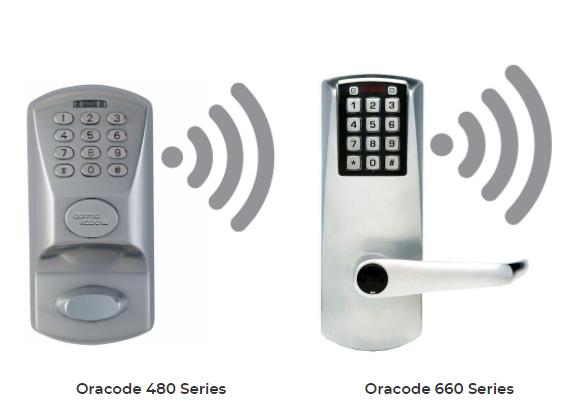
Note: dormakaba only offers the 480i and 660i for purchase. However, you can still import your 480 and 660 smart locks into Jervis Systems.
Here we detail the process for setting up your Oracode locks, which applies to both the 480/480i and 660/660i models:
- First, connect to your property management system or channel manager. Each platform will have its unique requirements to connect. To view the instructions for your specific system, check out the user guides on our FAQ page.
- Once your property management system is connected, you have the option to edit your properties to add an offset capability that allows Jervis Systems to configure automated keyless access for early check-in and late check-out. If you have the same offset capabilities across all properties, you can use the bulk offset tool to apply these settings across your entire portfolio.
NOTE: The ability to apply custom codes, add offsets, or edit reservations only works with locks that are Wi-Fi connected. For offline locks, this is not possible.

- Head over to the Devices page of your Jervis Systems account and select dormakaba – Oracode from the Import Devices drop-down list.

- You will be brought to the dormakaba login screen and prompted to input your Site Name, Access Token, and door user level to connect.
Your site name will be shown in the upper left-hand corner of your Oracode account in the Sites drop-down.

You will need to contact the dormakaba team to obtain an access token to associate Jervis Systems with your account.
Once they have confirmed this is completed, please submit your Site Name via a Support Request under Support on your Jervis Systems dashboard.
The Jervis team will connect your Oracode account and will let you know once this is completed.

- Once your dormakaba account is connected, you can select the Refresh button on your devices page to show your imported devices. Then, select the drop-down list under the Assigned Listings column to assign the device(s) to a listing. Be sure devices are assigned to the correct listing. After assigning a device, the status will show as enabled and turn green.

- Now, it’s time to import reservations. Head over to the Reservations page and select the “Refresh” button. Once your reservations are imported, you should see your PIN code under the SET PIN field.
Note: The offline locks like the dormakaba 330 and 660 do not allow custom codes.

Success! Your dormakaba locks are now connected and access is set up for your guests.
Need additional help and support? Check out the additional user guides on our FAQ page. You can also get help by submitting a Support Request via your Jervis Systems dashboard.
RECENT POSTS

Jervis Smart Device Integration Status
March 27, 2026


Jervis Systems®: The Future of Property Automation
June 26, 2020



Top 4 Tips On Renting Your Private Property Long-Term
July 21, 2020
Categories
- Airbnb Mastery (1)
- Integrations (10)
- Jervis Systems Guides (142)
- Property Projects (1)
- Real Estate Tips (5)
- Rental Property Tips (10)
- Technology Solutions (10)
