
With the Jervis Systems-dormakaba integration, you can import your property listings and reservation details and automate property access via SET PIN codes for guests, cleaning companies, and maintenance personnel.
This guide specifically covers setup for the Saffire EVO VR Series. We detail the Oracode smart lock setup in our user guide here.
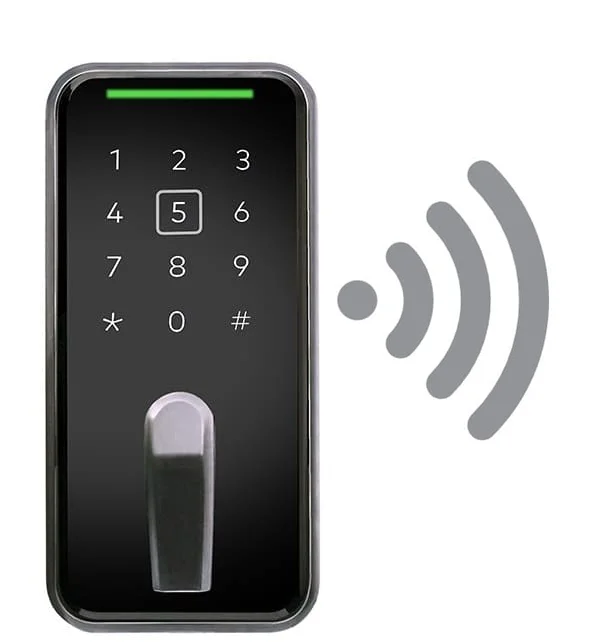
One item we should note: dormakaba only offers the 480i and 660i for purchase. However, you can still import your 480 and 660 smart locks into Jervis Systems.
No matter which smart lock you have in place, the setup process is super simple:
- Navigate to the Devices page select dormakababa – Saffire EVO from the Import Devices drop-down list.

- You will be prompted to input your Site ID to connect. This may be provided to you by the dormakaba team, however Jervis can also request this information. If you have don’t have your Site ID, select “Don’t have your Site ID yet?” to enter your email address and site name (found on your dormakaba login page) to get an invite.

- Once your account is connected, you can select the Refresh button on your devices page. Then, select the drop-down list under the Assigned Listings column to assign your dormakaba devices. Be sure the correct listings are assigned. After assigning, the status will show as enabled.

- From your reservations tab, select the Refresh Reservations button. Once your reservations are imported or refreshed, you should see the generated PIN code under the SET® PIN field.

Success! Your dormakaba Saffire EVO locks are now connected and access is set up for your guests.
- If you need to configure access cards or key fobs, check out our guide here for more details.
- If you would like to create a site ID and don’t have one yet, please submit a support request through your dashboard.
We need the following information to create a Site ID:
First Name:
Last Name:
Physical Address:
*Company Name:
**Customer Email:
***Installer Lyazon Email Address:
*The Company Name will be used as the Site Name with dormakaba for the Saffire EVO locks.
*The customer email will be used as the login for the Lyazon app (used to set up the Saffire EVO locks).
***If there is an installer doing the install, we need the email address the installer uses for their Lyazon email account.
Need additional help and support? Check out the user guides on our FAQ page. You can also get help by submitting a Support Request via your Jervis Systems dashboard.