
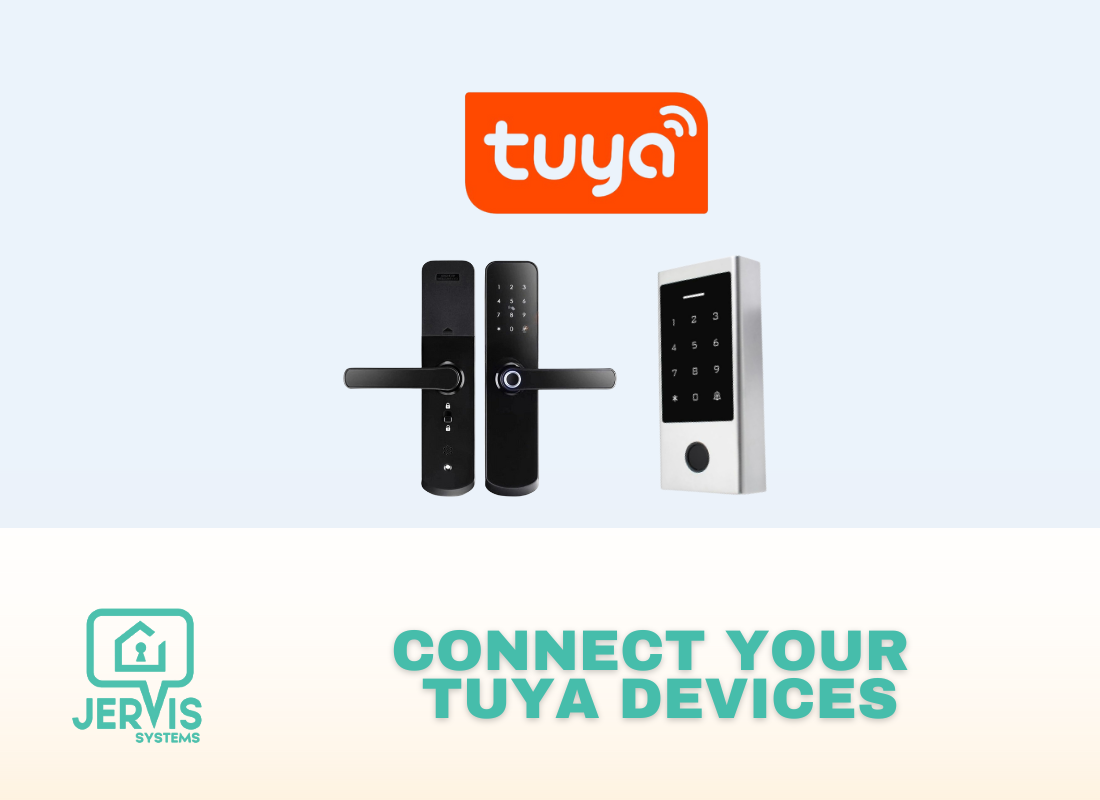
How to Import Your Tuya Devices to Jervis Systems®
This guide details the key information and steps you need to know to import your Tuya WiFi-enabled keypads and smart locks.
Prior to importing, it’s important to note the following:
For temporary codes, there is a limitation of the number of codes allowed per lock. We will need you to verify that you do not have unnecessary temporary codes remaining on the lock and delete them. We have seen odd behavior where some codes get deleted before a new one is added. We do not receive any details about this via the Tuya API.
We can switch to permanent codes, which allows more codes. However, we are NOT able to schedule strict start and end times for permanent users. This can be a security risk that needs to be fully understood before we implement.
We can switch to processing one week at a time versus our default two-week rolling window of processing. This may help avoid some of the errors associated with adding codes.
How to Connect Your Tuya Account & Devices
- For Tuya devices specifically, Jervis will need to generate a QR code for you that you have to scan with the Tuya SmartLife app. The QR code must be scanned within a few minutes of generation or it expires.
- Please go to Support > Support Request to submit a ticket to our team.
For Property, Devices and Reservations, select “N/A” from the respective drop-down menus.
In the Comments or Questions section, you will need to note that you would like to link your Tuya account. Additionally, enter the country where your devices are located. This is very important as we are required to choose the datacenter with Tuya that is in the region where your devices are located.
- Select the checkbox next to “I would like to submit my device vendor credentials to assist in troubleshooting or for device integration beta testing“.
Select Tuya from the drop-down menu, enter your Tuya mobile app username in the Device Username field, and enter your Tuya mobile app password in the Device Password field.
NOTE: Please make sure this is the credentials for the Tuya Smart Life mobile app. The Tuya API will not work for any other apps.

- Once your information is submitted you can expect a response from the Jervis Systems team within 1-2 business days, however, the response time is typically much faster. Our team will review your request and send over an email notification once your Tuya account has been connected from our side.
- Once you have been notified, navigate to your Devices page to view your newly imported Tuya devices. Select the drop-down option under Assigned Listings to assign each of your imported devices to a property. Be sure the device is assigned to the correct property. Be sure the device is assigned to the correct property. After assigning your device, the status will show as enabled.

- Going forward, if you are looking to import newly added Tuya devices, do not re-import the vendor. Use the Refresh Devices option at the top of the Devices page.
- Now, it’s time to import reservations. Head over to the reservations page. Your reservations will be automatically imported into Jervis Systems within 30 minutes to an hour. You can immediately import your STR reservations by navigating to the Reservations tab in your Jervis Systems account. From here select the “Refresh” button. Once your reservations are imported or refreshed, you should see your randomly generated PIN code under the SET PIN field.

- You can find the codes in the Tuya app by selecting Temporay Code < Log Record.

- Codes will be removed after the reservation is completed within one day. Once the reservation is over, the code is disabled and left for one day. This is in case of any last minute reservation changes.
Success! Your Tuya WiFi-enabled smart devices are now connected and access is set up for your guests.
Need additional help and support? Check out the additional user guides on our FAQ page.
RECENT POSTS

Jervis Smart Device Integration Status
March 27, 2026


Jervis Systems®: The Future of Property Automation
June 26, 2020



Top 4 Tips On Renting Your Private Property Long-Term
July 21, 2020
Categories
- Airbnb Mastery (1)
- Integrations (10)
- Jervis Systems Guides (142)
- Property Projects (1)
- Real Estate Tips (5)
- Rental Property Tips (10)
- Technology Solutions (10)
