
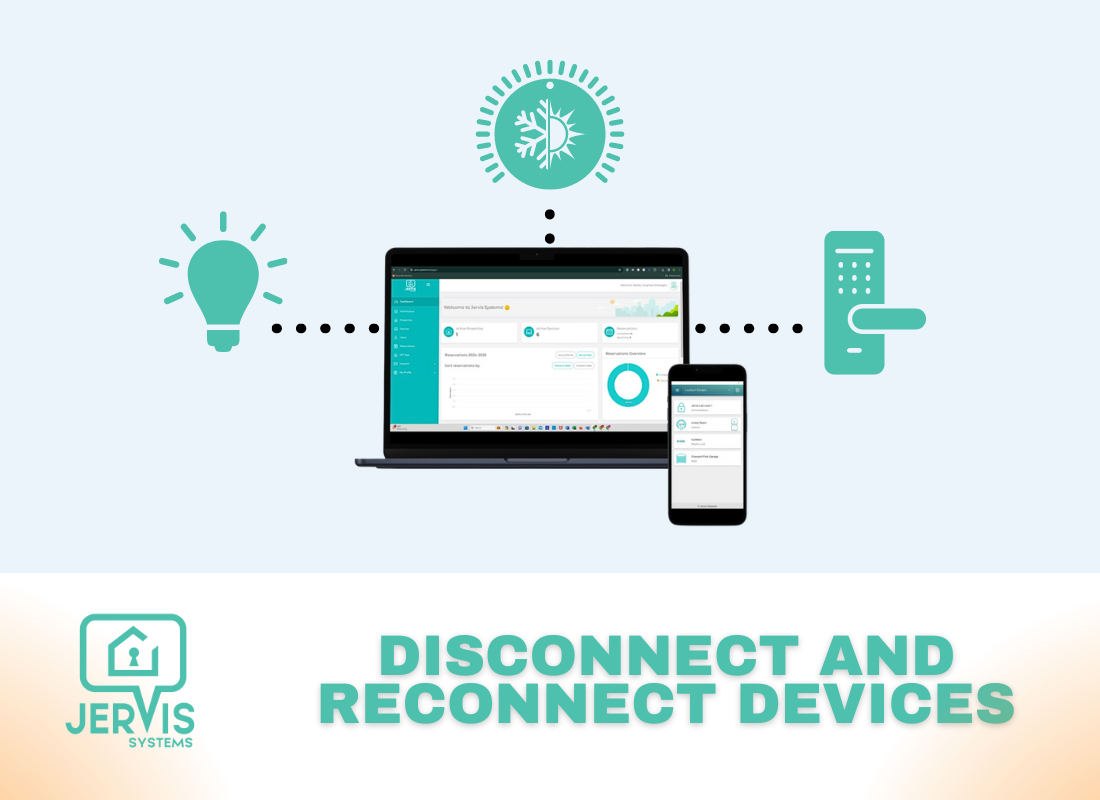
How to Disconnect & Reconnect Your Devices in Jervis Systems®
When troubleshooting a device issue, we recommend disconnecting and reconnecting your affected devices in Jervis Systems. This guide will walk you through the process.
- From your Devices page, select the option at the top of the page to Disconnect Devices, and select the brand for the affected device(s). You MUST disconnect before you attempt to reconnect. The same account should only be connected once. Otherwise, reconnecting if you have NOT already disconnected leads to duplications and errors.

- From here, select the option to confirm the disconnection process.

- To reconnect, you will need to re-import your devices. To do this, you’ll follow the same process used to initially import your devices into your account.
- Select Import Devices and then select the brand for the devices you want to reconnect.

- Follow the on-screen prompts to connect your account. (If you need a refresh on a specific brand, you can check out our device vendor guides here.)
- Once your devices are imported successfully, Jervis will attempt to automatically re-map your devices if they were previously imported.
- If this fails for some devices, select the drop-down list under Assigned Listings and check the boxes for the associated listings. Once the device is assigned, it will show as active and enabled.
Note: If the devices are automatically assigned to your respective listings, you can move on to the next step.

- We highly recommend editing the device name to make it clear which door or entry point is associated with the device. This also makes it easier for our team to troubleshoot.
- Going forward, if you are looking to import newly added devices with a vendor, do not re-import the vendor. Use the Refresh Devices option at the top of the Devices page.
- If you have properly disconnected and reconnected without connecting twice, and your SET PIN codes are still not generating, you can try to reprocess the reservations using the guide here.
There you have it! Your devices have been disconnected and reconnected.
If you need additional support, you can always reach our team by sending a Support Request from your Jervis Systems dashboard.
RECENT POSTS

Jervis Smart Device Integration Status
March 27, 2026


Jervis Systems®: The Future of Property Automation
June 26, 2020



Top 4 Tips On Renting Your Private Property Long-Term
July 21, 2020
Categories
- Airbnb Mastery (1)
- Integrations (10)
- Jervis Systems Guides (142)
- Property Projects (1)
- Real Estate Tips (5)
- Rental Property Tips (10)
- Technology Solutions (10)
